Sending the same email to hundreds of people is easy. Sending a personalized email to hundreds of people — where each message feels like it was written specifically for that recipient — is a different challenge entirely. Without the right tools, it means copy-pasting the same template, changing the name, and repeating that process dozens or hundreds of times. That is where Google Sheets mail merge changes everything.
By connecting a Google Sheets spreadsheet to Gmail, you can send personalized emails at scale: each recipient gets a message with their name, company, order number, event date, or any other custom detail pulled directly from your spreadsheet. No manual editing. No repeated copy-paste. The whole batch goes out in minutes.
This article walks through five real-world use cases where teams are getting genuine results from Google Sheets mail merge — and the templates they use to do it.
Why Google Sheets Is the Ideal Data Source for Mail Merge
Most people already keep their contact lists, customer data, or event RSVPs in Google Sheets. It syncs across devices, allows team collaboration, and integrates natively with the rest of Google Workspace. That makes it a natural fit as the data layer for a Gmail mail merge.
A typical Google Sheets mail merge setup looks like this:
Each column in the spreadsheet becomes a merge tag in your email template. When you send, the tool replaces {{firstName}} with “Sarah” for the first recipient, “James” for the second, and so on — automatically, across every row.
The key is getting that connection between Google Sheets and Gmail right. That is what a purpose-built mail merge tool handles, taking care of authentication, sending limits, and template formatting so you can focus on the message itself.
Use Case 1: Sales Outreach — Personalized Cold Emails at Scale
Sales teams send a lot of cold email. The problem is that most cold email is obviously generic — and recipients can tell immediately. A message that addresses someone by name, mentions their company, and references something specific about their situation performs substantially better than one that does not.
What the spreadsheet contains:
firstName,company,role,industry,painPoint(a short research note about their challenge)
Template example:
Hi
{{firstName}},I noticed that
{{company}}has been expanding in the{{industry}}space — congrats on the growth. We work with companies like yours who are dealing with{{painPoint}}, and typically help them reduce manual outreach time by 60% or more.Worth a quick 20-minute call this week?
With a Google Sheets mail merge from Gmail, a sales rep can send 50 of these in the time it would normally take to send five. Because each email is personalized with real data from the spreadsheet, reply rates are significantly higher than with a generic blast.
Key tip: Keep the painPoint column short — one phrase, not a paragraph. The email should still read naturally.
For a step-by-step setup, see the complete Gmail mail merge guide.
Use Case 2: Event Invitations — Personalized Guest Communications
Event organizers manage complex guest lists across multiple spreadsheets. Whether it is a corporate conference, a product launch, or a community workshop, each guest may need different information: their ticket tier, their table assignment, their unique QR code link, or a personalized schedule.
What the spreadsheet contains:
firstName,ticketType,sessionDate,tableNumber,registrationLink
Template example:
Hi
{{firstName}},Your
{{ticketType}}ticket for the Annual Summit is confirmed. Your session begins on{{sessionDate}}at 9 AM.Access your personalized event portal here:
{{registrationLink}}Table assignment:
{{tableNumber}}. We look forward to seeing you there.
Without mail merge, sending 300 personalized confirmation emails would require 300 manual edits. With a Google Sheets mail merge workflow, the whole batch goes out in a single operation — and every guest gets the right details.
 Try Mail Merge
Send personalized emails directly from Gmail using your Google Sheets data. Set up in minutes — no coding required.
Get Started →
Use Case 3: HR Communications — Onboarding and Policy Updates
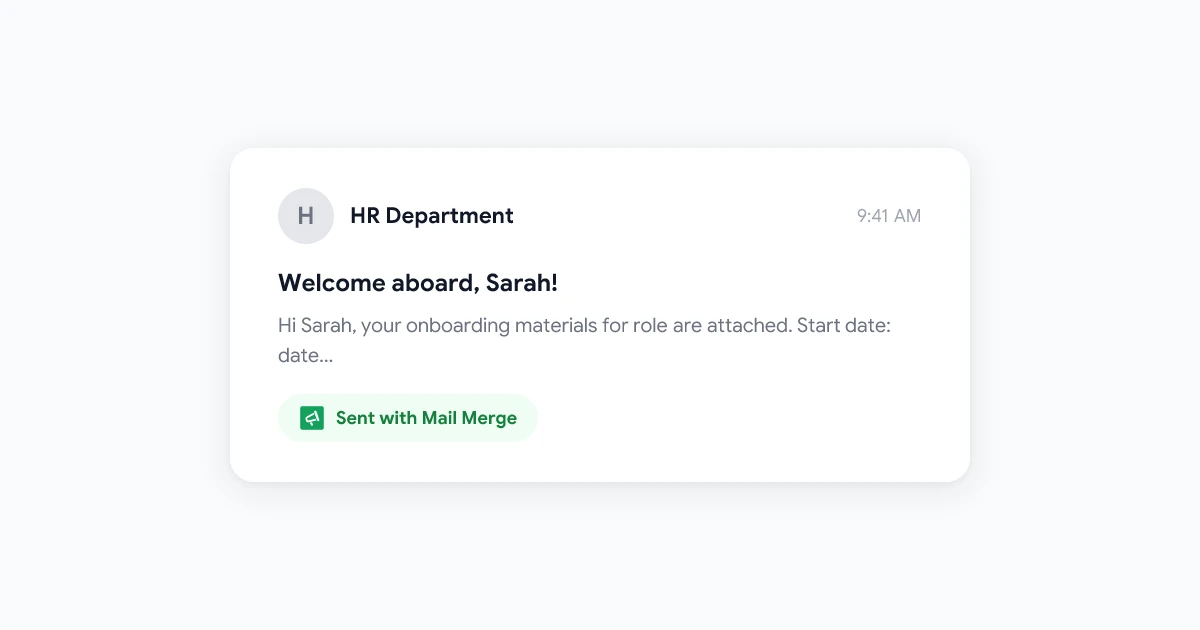
HR teams are frequent power users of Google Sheets mail merge. Employee data already lives in spreadsheets — headcount lists, department rosters, role data, contract details. Mail merge bridges that data to Gmail without requiring any export, manual copy, or third-party HR platform.
Onboarding Welcome Emails
New hire onboarding involves sending each person a different set of information depending on their role, team, start date, and office location. Mail merge makes this manageable:
What the spreadsheet contains:
firstName,role,team,startDate,managerName,officeLocation,slackChannel
Template example:
Hi
{{firstName}},Welcome to the team! We’re thrilled to have you joining as
{{role}}on the{{team}}team starting{{startDate}}.Your manager
{{managerName}}will reach out directly with your first-week schedule. In the meantime, join{{slackChannel}}to connect with your team.
Policy Update Notices
When company policy changes, HR needs to notify all staff — sometimes segmented by department or location. With a Google Sheets mail merge, you can send to filtered subsets of your employee list without maintaining separate email groups.
For HR teams dealing with sensitive documents alongside these communications, the guide to mail merge with attachments covers how to include personalized documents in each send.
Use Case 4: Customer Onboarding — Welcome and Setup Sequences
SaaS companies and subscription businesses use Google Sheets mail merge to send onboarding emails that feel personal without requiring a complex email marketing platform. For early-stage teams especially, this is often the fastest path to a high-quality onboarding experience.
What the spreadsheet contains:
firstName,plan,trialEndDate,accountManagerName,setupGuideUrl
Template example:
Hi
{{firstName}},Your
{{plan}}account is live. Here is your personalized setup guide:{{setupGuideUrl}}Your trial runs until
{{trialEndDate}}.{{accountManagerName}}is your dedicated point of contact — reply to this email anytime.
The advantage over a generic welcome email is clear: the customer sees their plan name, their specific guide URL, and the name of a real person to contact. That level of personalization signals attention to detail even for a new user who does not yet have loyalty to the product.
Use Google Sheets filters to create separate named ranges for different customer segments before running your mail merge. This lets you send different messages to trial users, paid users, and churned users — all from the same master spreadsheet.
Use Case 5: Nonprofits — Donor Thank-You and Fundraising Emails
Nonprofits live and die by donor relationships, and those relationships depend on recognition. A donor who gave $500 last year should receive a different acknowledgment than a first-time donor who gave $25 — but manually segmenting and writing those emails is time-consuming for small teams with limited staff.
What the spreadsheet contains:
firstName,donationAmount,lastGivingDate,donorTier,campaignName,impactStat
Template example:
Dear
{{firstName}},Thank you for your generous gift of
{{donationAmount}}to the{{campaignName}}campaign. Your support has helped us{{impactStat}}.As a
{{donorTier}}donor, you’ll receive our quarterly impact report by the end of the month.With gratitude, The Team
The {{impactStat}} field can be populated with a relevant milestone pulled from the campaign tracker — “provide clean water to 12 families” or “fund 45 school supply kits” — making the email feel genuinely personal even at scale.
For nonprofits managing multiple fundraising campaigns simultaneously, a Google Sheets mail merge from Gmail keeps everything within the tools the team already uses, without needing a separate donor management platform for smaller sends.
Google Sheets Mail Merge Template: Structure Cheat Sheet
Regardless of use case, every effective Google Sheets mail merge follows the same structural logic:
| Spreadsheet Column | Email Tag | Example Value |
|---|---|---|
firstName | {{firstName}} | Sarah |
company | {{company}} | Acme Corp |
customField1 | {{customField1}} | Enterprise plan |
email | (recipient address) | sarah@acme.com |
Rules that make merge emails land well:
- Use natural personalization — merge tags that would appear in a hand-written message, not just a name at the top
- One clear call to action per email — don’t list three links
- Test with a single row first before sending to the full list
- Check merge tag spelling — a mismatched tag name (
{{firstname}}vs{{firstName}}) will render as a literal tag in the email
Frequently Asked Questions
Putting It All Together
Google Sheets mail merge is not just a time-saving shortcut — it is a genuine upgrade in the quality of communication you can send at scale. Whether you are a sales rep running cold outreach, an HR manager handling onboarding, an event coordinator managing guest logistics, or a nonprofit steward nurturing donor relationships, the core workflow is the same: keep your contact data organized in Google Sheets, write a template that uses that data naturally, and let mail merge handle the personalization.
The five use cases above cover the most common scenarios, but the same principles apply to any situation where you need to send personalized email to a list. The starting point is always a well-structured spreadsheet and a clear sense of which details matter most to each recipient.
Ready to send your first Google Sheets mail merge campaign? Mail Merge for Gmail connects directly to your spreadsheet and walks you through the setup in minutes.