Your Telegram group gets the same questions over and over. New members ask how to get started. Customers ask about pricing. Team members ask where a specific document lives. And every time, someone has to stop what they are doing to answer.
An AI assistant in your Telegram group solves this permanently. It answers the common questions instantly, at any hour, in any language. And getting one running takes less time than you might expect.
This guide covers five different methods for adding an AI assistant to a Telegram group. Each method is suited to a different situation - from one-click setup to fully custom deployments. By the end, you will know which approach fits your needs and exactly what steps to take.
Why Add an AI Assistant to Your Telegram Group?
Before covering the methods, it helps to understand what you are actually solving.
Most active Telegram groups share the same operational problems:
Repetitive questions. The same questions appear every week from new members or people who did not read pinned messages. Answering these manually is inefficient and frustrating for longtime members.
Off-hours silence. A global team or international community cannot have someone available 24 hours a day to answer questions. Members in different time zones wait hours for responses that should be instant.
Language barriers. International communities struggle when members speak different languages. An AI assistant that responds in the language it is addressed in removes this friction entirely.
Thread catching-up. When a member returns after being away, catching up on hours of messages is time-consuming. A bot that summarizes recent activity makes this immediate.
Drafting help. Teams that use Telegram as a workspace often need to draft announcements, write summaries, or compose messages. Having an AI assistant available in the same interface eliminates context switching.
An AI bot that handles these situations well transforms the group experience for both members and administrators.
Method 1 - Add TeleClaw (Fastest Setup, No Code Required)
TeleClaw is the simplest way to add a capable AI assistant to a Telegram group. It was built specifically for Telegram and takes about 30 seconds to set up.
Step 1 - Open Your Group Settings
Open the Telegram group where you want to add the assistant. Tap the group name at the top to open the group info panel. You will see the list of current members and an option to add new ones.
Step 2 - Add TeleClaw as a Member
Tap “Add Members” and type “@teleclaw_tbot” in the search field. Select TeleClaw from the results and tap Add. Telegram will ask whether to give the bot admin permissions or standard member access.
For most groups, standard member access is the right choice. TeleClaw can read messages where it is mentioned and respond without needing admin permissions. If you want TeleClaw to see all messages and provide proactive assistance, admin access with read permissions works as well.
Step 3 - Announce the Bot to Your Members
Post a message in the group letting members know the assistant is available:
TeleClaw is now in this group. Mention @teleclaw_tbot in any message to ask it a question, get a summary, or get help with writing.
This sets expectations and helps members get value from the bot immediately.
Step 4 - Ask Your First Question
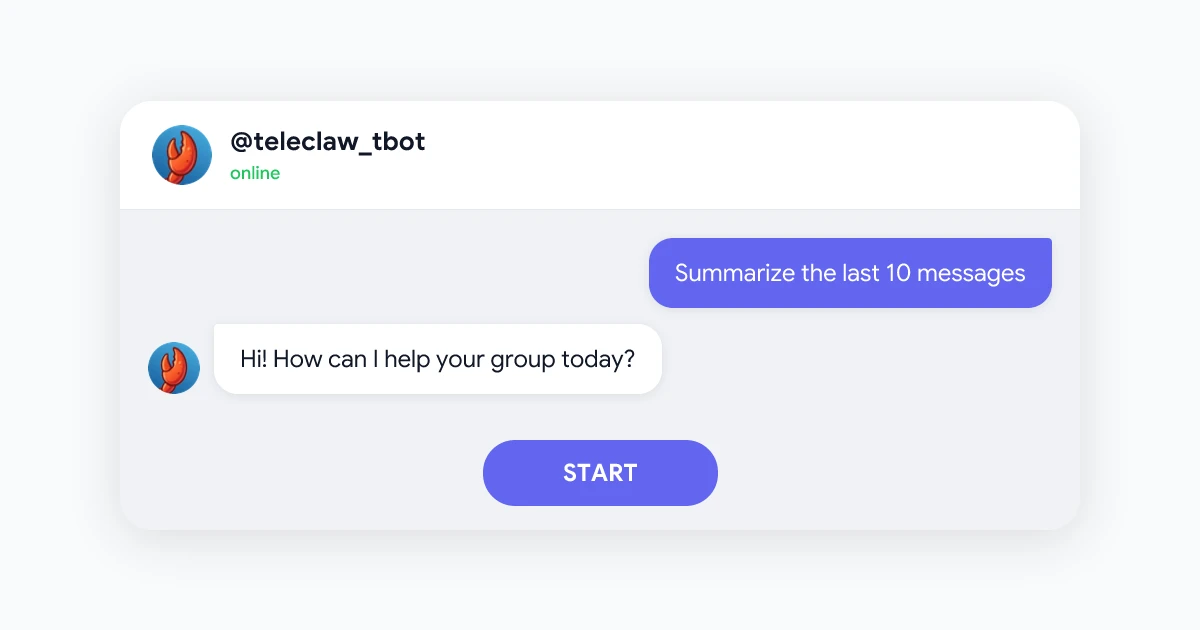
Mention @teleclaw_tbot in a message to get a response:
@teleclaw_tbot Can you summarize what a new member should know about this group?
TeleClaw reads the message, understands what is being asked, and responds with a helpful answer. No commands, no special syntax required.
What Makes This Method Best for Most Groups
TeleClaw’s biggest advantage is that it just works. There are no API keys to configure, no server to host, and no code to write or maintain. The bot handles all of that on its end.
For non-technical group owners and community managers, this is the only method that realistically gets deployed and stays deployed long-term.
Method 2 - Build a Custom Bot with OpenAI API and BotFather
For teams with development resources who need a bot with proprietary data access or custom behavior, building a custom Telegram bot is a viable path.
Step 1 - Create a Bot via BotFather
Open Telegram and search for @BotFather. This is Telegram’s official bot management tool. Send the command /newbot and follow the prompts to choose a name and username for your bot. BotFather will give you a Bot Token - a string that looks like 123456:ABC-DEF1234ghIkl...
Save this token securely. It is the credential your code will use to send and receive messages through Telegram’s API.
Step 2 - Set Up an OpenAI API Account
Go to platform.openai.com and create an account if you do not have one. Navigate to “API keys” and create a new key. This key costs money every time it is used, charged per token (roughly per word processed).
Set a spending limit before you start. An active group can generate unexpected costs if you do not cap usage.
Step 3 - Write the Bot Logic
The bot needs to do three things. Listen for messages where it is mentioned. Send those messages to the OpenAI API. Return the response back to Telegram.
A minimal Python example using the python-telegram-bot library:
import openai
from telegram import Update
from telegram.ext import ApplicationBuilder, MessageHandler, filters

async def handle_message(update, context):
    if context.bot.username in (update.message.text or ""):
        response = openai.chat.completions.create(
            model="gpt-4o",
            messages=[{"role": "user", "content": update.message.text}]
        )
        await update.message.reply_text(response.choices[0].message.content)

app = ApplicationBuilder().token("YOUR_BOT_TOKEN").build()
app.add_handler(MessageHandler(filters.TEXT, handle_message))
app.run_polling()
This is a minimal starting point. A production bot needs error handling, rate limiting, conversation memory, and logging.
Step 4 - Host the Bot
The bot needs to run continuously on a server. Options include AWS Lambda, Google Cloud Run, Railway, Render, or a simple VPS. The hosting adds a monthly cost of roughly $5-20 depending on the provider and your bot’s usage level.
Step 5 - Test in Groups
Add your custom bot to a test group using the same process as Method 1. Verify it responds correctly, handles edge cases, and does not produce unexpected behavior before adding it to your main group.
This method is the most powerful option but also the most demanding. For the full comparison of effort vs. capability, see TeleClaw vs Building Your Own Telegram Bot.
Method 3 - Connect with Zapier
Zapier can bridge Telegram and an AI service without writing any code. This is a no-code option for teams that want some customization without full development work.
Step 1 - Create a Zapier Account
Go to zapier.com and create an account if you do not have one. You will need a paid plan to use Telegram as a trigger; the free tier does not include all Telegram integrations.
Step 2 - Set Up a Telegram Bot via BotFather
Follow the BotFather steps from Method 2 to create a bot and obtain a Bot Token. Zapier connects to this bot to receive and send messages.
Step 3 - Create a Zap with Telegram Trigger
In Zapier, create a new Zap. Set the trigger to “Telegram Bot - New Message.” Connect your bot using the Bot Token. Configure what kinds of messages should trigger the Zap (for example, messages containing the bot’s @username).
Step 4 - Add an OpenAI or ChatGPT Action
Add an action step to your Zap. Search for “OpenAI” or “ChatGPT” in Zapier’s action library. Select “Send Prompt” or the equivalent. Map the message content from the Telegram trigger to the prompt field.
Step 5 - Add a Telegram Send Action
Add another action step to send the AI’s response back to Telegram. Select “Telegram Bot - Send Message.” Map the chat ID from the trigger and the response from the OpenAI step.
Limitations of Zapier
Zapier works for simple use cases, but the integration has meaningful limitations. Multi-turn conversations are difficult because Zapier does not maintain conversation state between messages. Each message is treated independently. Response latency is higher than a dedicated bot. Costs can be unpredictable if your group is active.
Method 4 - Connect with Make.com (Formerly Integromat)
Make.com is a visual automation platform similar to Zapier but with more powerful workflow options, including better support for multi-step scenarios and conditional logic.
Step 1 - Create a Make.com Account
Go to make.com and sign up. Make.com has a free tier that includes basic scenarios with limited operations per month.
Step 2 - Create a New Scenario
Click “Create a new scenario.” Search for and add the Telegram Bot module as your trigger. You will need to create a Telegram Bot connection using your Bot Token from BotFather.
Step 3 - Configure the Message Trigger
Set the trigger to watch for new messages in your group where your bot is mentioned. Make.com will begin watching for incoming messages in real time.
Step 4 - Add an HTTP or OpenAI Module
Add an OpenAI module or an HTTP module that calls the OpenAI API directly. Configure the prompt to include the message text from the Telegram trigger.
Step 5 - Add a Telegram Response Module
Add a Telegram module that sends the AI response back to the same chat. Map the chat ID and message thread ID from the trigger to ensure the response appears in the right place.
Make.com supports more complex logic than Zapier, including maintaining conversation context through data stores. For teams comfortable with visual workflow tools, this can be a good middle ground between Zapier and full custom development.
Method 5 - Telegram’s Built-in AI (Premium Only)
Telegram Premium includes built-in AI features for message summarization and voice transcription. This is not a bot you add - it is functionality built into the app for Premium subscribers.
What This Includes
Telegram Premium subscribers can summarize groups and channels they belong to directly from the app interface. Voice message transcription converts audio messages to text automatically. Search assistance helps find relevant content within chats.
Why This Method Has Significant Limitations
The built-in features are passive tools, not conversational assistants. They summarize and transcribe but do not respond to questions, provide information, or assist with tasks. Members cannot @mention the feature to ask something.
Group members who are not Telegram Premium subscribers cannot access these features, so the capability is not evenly available to your community.
This method is suitable for individual power users who want basic AI features within Telegram, not for teams or communities that need an interactive assistant.
Comparison Table: All 5 Methods
| Method | Setup Time | Technical Skill Required | Monthly Cost | Group Chat Ready | Conversation Memory | Customization |
|---|---|---|---|---|---|---|
| TeleClaw | 30 seconds | None | Free tier available | Fully native | Yes | Limited |
| Custom OpenAI Bot | Hours to days | Developer required | $10-200+ (API + hosting) | Yes (with setup) | Requires coding | Full |
| Zapier | 30-60 minutes | No-code | $20+/mo (Zapier plan) | Partial | No | Moderate |
| Make.com | 45-90 minutes | No-code | $10+/mo (Make plan) | Partial | With data stores | Moderate |
| Telegram Premium AI | Built-in | None | $4.99/mo per user | Summarization only | No | None |
Privacy Considerations When Adding AI to Telegram Groups
When you add any AI bot to a Telegram group, every message where the bot has access gets processed by an external service. This has privacy implications worth understanding before you decide on a method.
What the bot receives. Through Telegram’s Bot API, any bot that is a member of a group can receive the text of messages, the sender’s username and user ID, timestamps, and the chat identifier. It does not receive phone numbers or content from other chats.
Where messages go after that. This depends entirely on the method you choose. With TeleClaw, messages are processed to generate responses and not used to train models. With a custom bot, you control the data flow entirely. With Zapier or Make.com, messages pass through those platforms’ infrastructure as well as OpenAI’s.
What to do before adding a bot to a sensitive group. Read the privacy policy of any service you are considering. Look for explicit statements about data retention and whether your messages are used for training. Tell your group members when you add a bot so they can make informed decisions about what to share.
For a full breakdown of privacy in AI Telegram bots, see Privacy in AI Telegram Bots - What Data Is Stored.
Which Method Should You Choose?
You want something working today with no technical setup: Use TeleClaw. It takes 30 seconds and covers the most common group assistant use cases out of the box.
You need the bot to access your internal data or systems: Build a custom bot. No off-the-shelf product can replace custom integration with proprietary databases.
You want no-code customization and are comfortable with Zapier/Make: Use Method 3 or 4. These give more configuration options than TeleClaw with less work than custom development.
You are an individual Telegram Premium subscriber wanting basic AI features: The built-in Telegram features may be sufficient without adding any external bot.
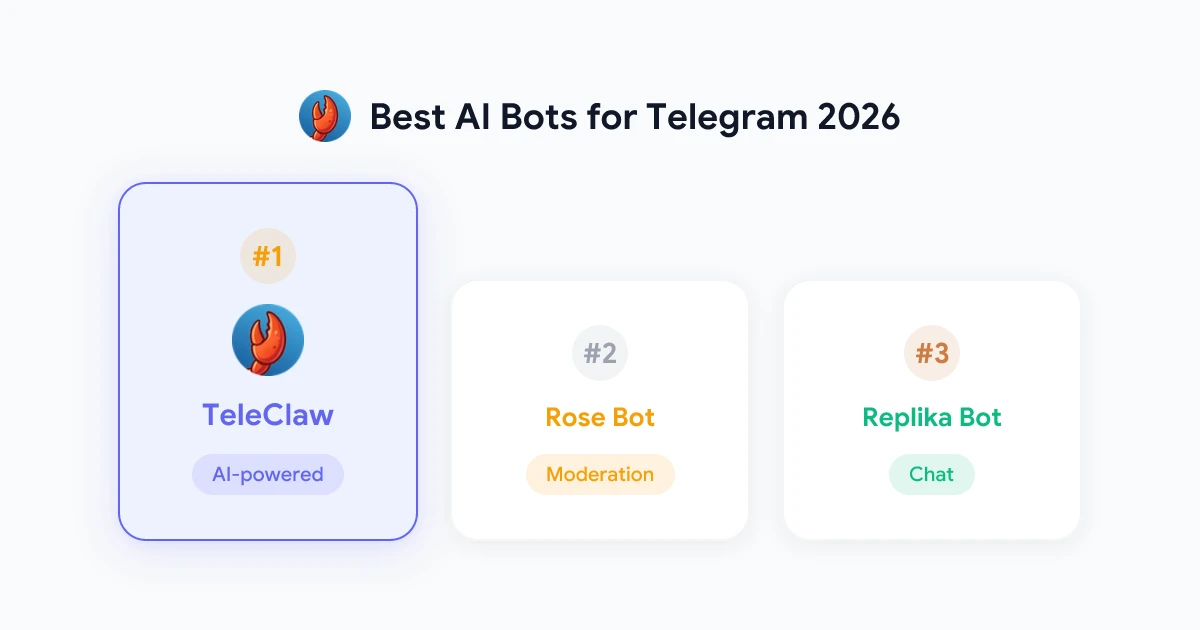
For most Telegram groups that want an AI assistant quickly and reliably, TeleClaw is the practical answer. The other methods have their place for specific requirements, but they require more time and resources to deploy and maintain.
 Try TeleClaw - Add to Your Group in 30 Seconds
The AI assistant built for Telegram groups. Answers questions, summarizes chats, and helps your community without any setup or coding required.
Add TeleClaw to Telegram