Sending bulk emails from Gmail sounds simple: write a message, add a list of addresses, hit send. But that approach fails on two fronts. Generic blasts get low open rates because they feel impersonal, and pasting hundreds of addresses into BCC violates Gmail’s terms of service and damages your sender reputation.
The right way to send bulk emails in Gmail is personalized mail merge — individual messages that include each recipient’s name, company, and other custom details, sent one at a time from your real Gmail address. Every email looks like it was written specifically for that person. None of them get flagged as mass mail.
Here are seven tips that make personalized bulk email in Gmail actually work.
1. Use Mail Merge Instead of BCC
The most common mistake when sending bulk email from Gmail is using BCC to put everyone on one message. Gmail’s spam filters are designed to detect this pattern. A single email with hundreds of recipients in BCC signals mass mailing, which can get your message routed to spam — or get your account suspended.
Mail merge works differently. Instead of sending one email to many, it sends many emails to one each. Every recipient gets a separate message, sent individually from your Gmail account. From Gmail’s perspective, you sent 200 separate emails, not one email with 200 recipients. From the recipient’s perspective, they received a personal message addressed specifically to them.
 Try Mail Merge for Gmail
Send personalized bulk emails from Gmail using your Google Sheets contact list. Each recipient gets an individual email with their own name, company, and custom details — no BCC, no spam issues.
Get Started Free →
Mail Merge for Gmail runs entirely inside Google Sheets and Gmail. You connect your contact spreadsheet, write a template with merge fields, and send — all from your existing Google account.
2. Personalize Beyond the First Name
Most people add {{First Name}} to their greeting and call it personalization. That’s the baseline, not the goal. The biggest lift in open rates and replies comes from personalizing something specific to each recipient — their company, industry, role, or a detail that shows you did your homework.
High-impact fields to personalize:
- Subject line:
{{First Name}}, quick question about {{Company}}outperforms a generic subject every time - Opening line: Reference their industry, recent announcement, or specific challenge
- Offer or message body: Segment your list and tailor the core value proposition per segment
- Call to action: Use a custom URL or meeting link per recipient when relevant
This level of personalization requires a few extra columns in your spreadsheet and some upfront research, but the payoff is real. Personalized subject lines alone can increase open rates by 20-30% compared to a generic subject.
3. Clean Your List Before Every Send
Sending to an unclean list is one of the fastest ways to damage your Gmail sender reputation. Invalid addresses generate hard bounces; sending to people who never opted in generates spam reports. Both signals tell Gmail that your account sends unwanted mail — and Google acts on that.
Before every bulk email campaign, run through this checklist:
- Remove duplicates — use
=UNIQUE()in Google Sheets to deduplicate your email column - Validate email format — scan for obvious typos like missing
@or malformed domains - Remove role addresses — delete
info@,noreply@,admin@,support@(these rarely convert and often mark as spam) - Purge unsubscribers — maintain a separate “do not email” list and filter it out before each send
- Delete bounced addresses — after your first send, remove any addresses that bounced to keep your list clean for the next one
A clean list of 200 engaged contacts outperforms a bloated list of 2,000 every time. The goal is engagement rate, not volume.
4. Write Subject Lines That Get Opened
Your subject line decides whether anyone reads the rest of your email. For personalized bulk email in Gmail, the best-performing subject lines follow a small set of patterns:
| Pattern | Example |
|---|---|
| Question | ”Quick question, {{First Name}}?” |
| Direct value | ”3 ways to cut onboarding time at {{Company}}“ |
| Personal reference | ”Noticed something about {{Company}}‘s email strategy” |
| Curiosity gap | ”What {{industry}} teams are doing differently in 2026” |
Subject line rules for bulk email:
- Keep it under 50 characters — mobile clients cut it off at around 40-50 chars in the preview
- Never use ALL CAPS or excessive punctuation — both are spam signals
- Match the subject to the email body — misleading subjects increase spam complaints
- Test two variations by splitting your list and comparing open rates
For sequences longer than one email, make follow-up subject lines reference the previous one. "Re: Quick question, {{First Name}}" outperforms a fresh subject on follow-ups because it looks like a reply chain, not a new blast.
5. Time Your Sends for Maximum Opens
When you send your bulk emails matters almost as much as what’s in them. Email open rates vary by day of week, time of day, and industry. Sending the same message at 7 AM Monday versus 10 AM Tuesday can produce meaningfully different results.
Benchmarks by audience:
- B2B professionals: Tuesday–Thursday, 8–10 AM or 2–4 PM (in the recipient’s local time zone)
- B2C / consumer email: Tuesday–Thursday, 10 AM–noon
- Avoid: Monday mornings (inbox catch-up after the weekend), Friday afternoons, weekends
If your list spans multiple time zones, segment it geographically and schedule separate sends for each region. Sending to someone in London at the same UTC time as someone in California means one of them is getting your email at 11 PM.
Mail merge tools let you schedule sends in advance — write your campaign the night before and have it land in inboxes at 9 AM. This is much more reliable than remembering to manually send at a specific time.
6. Track Opens to Know Who Engaged
Sending bulk emails without tracking is like mailing letters with no idea whether they were delivered or read. Open tracking adds an invisible pixel to each message — when a recipient opens the email, the pixel loads and logs an event. You see who opened, when they opened, and how many times.
This data drives smarter follow-up. Instead of following up with your entire list, you can:
- Prioritize openers who opened multiple times (high intent) for a personal call
- Re-send to non-openers with a different subject line
- Avoid follow-ups to recipients who already replied (no one wants a follow-up after they already answered)
For Gmail users doing personalized bulk sends, combining Mail Merge for Gmail with Mail Tracker gives you the complete picture. Mail Merge handles the personalized send; Mail Tracker shows who engaged with each message in your Gmail sidebar.
Check out our guide to email open tracking and follow-up strategy for a deeper look at how to turn tracking data into reply-generating follow-ups.
7. Send Targeted Follow-Ups to Non-Openers Only
A single personalized email — no matter how well-crafted — often isn’t enough. Most responses to cold outreach come from the second or third touchpoint, not the first. But sending the same follow-up to your entire list frustrates people who already engaged with your first message.
The right approach:
- Send your initial personalized bulk email
- Wait 3–5 business days
- Filter your tracking data to find contacts who did not open
- Send a shorter follow-up to just that segment
The follow-up should be brief — two or three sentences. Acknowledge that you sent something earlier and restate the value in a different way:
“Hi {{First Name}}, wanted to make sure my last note didn’t get buried. If reducing the time your team spends on email is something on your radar right now, I’d love to share how we’ve helped similar {{industry}} teams.”
Sending follow-ups only to non-openers keeps the experience feeling personal rather than automated. Recipients who already replied (or opened several times without replying) get handled separately with a more direct follow-up, not a generic sequence.
For a structured look at building follow-up sequences with open tracking, see Email Follow-Up Strategy: Use Open Tracking to Time Your Responses Perfectly.
Send Personalized Bulk Emails from Gmail
Mail Merge connects your Google Sheets contact list to Gmail and sends individual personalized emails to every contact — no BCC, no third-party platform, no spam issues.
Try Mail Merge Free →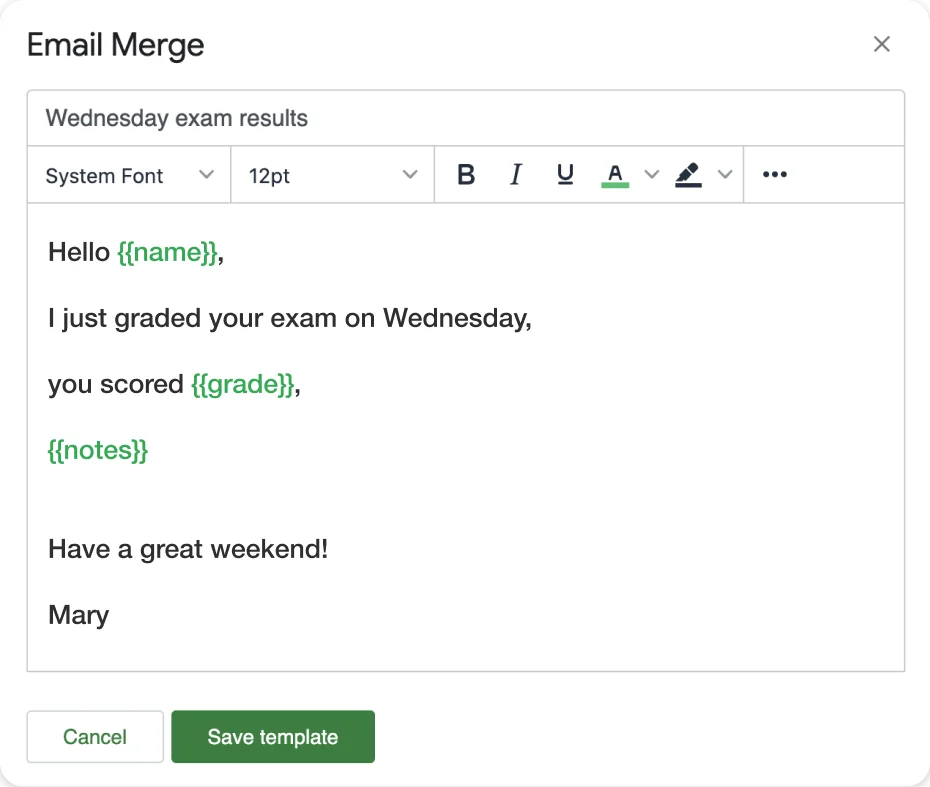
Gmail Sending Limits for Bulk Email
Before launching a campaign, know Gmail’s daily sending limits. Exceeding them causes emails to be queued or bounced, and repeated violations can get your account flagged.
For lists larger than 500 contacts, split your campaign across multiple days or use a Google Workspace account. The Mail Merge Gmail guide covers daily limit strategies in more detail, including how to stagger sends over several days without losing personalization.
Frequently Asked Questions
Wrapping Up
Sending personalized bulk emails from Gmail comes down to a few core principles: use mail merge instead of BCC, personalize beyond just the first name, keep your list clean, craft subject lines that earn the open, send at the right time, track who engages, and follow up only with non-openers.
Each tip compounds. A personalized subject line combined with good send timing and a clean list can double or triple your open rates compared to a generic blast. Add tracking and targeted follow-ups, and the same contact list produces far more replies.
For Gmail users, Mail Merge at merge.email handles the full workflow — connect your Google Sheets contact list, write your template with merge fields, and send individual personalized emails to your entire list without leaving Google Workspace. It’s the simplest way to add professional-grade email personalization to any Gmail account, for free.