Google Tasks is quietly one of the most powerful free tools inside Google Workspace — yet most people treat it like a basic sticky note app. Hidden beneath its minimal interface are integrations, shortcuts, and workflows that can fundamentally change how you organize your work.
Whether you’re new to Google Tasks or have been using it for years, these 10 Google Tasks tips and tricks will help you use it more effectively — and introduce you to the one tool that unlocks everything the built-in app can’t do on its own.
1. Sync Google Tasks with Google Calendar for Time-Blocking
The single most underused Google Tasks feature is its native integration with Google Calendar. Set a due date on any task and it automatically appears on your calendar — no extra setup required.
How to set it up:
- Open Google Tasks (in the Gmail sidebar or at tasks.google.com)
- Create or open a task and click the pencil icon to edit
- Click “Add date/time” and pick a due date
- Open Google Calendar — your task appears as a floating card on that date
This integration supports time-blocking: instead of a vague list of things to do, you see tasks sitting right next to your meetings. It forces you to plan realistically — if your calendar is packed on Tuesday, you’ll see immediately that three tasks can’t all be done that day.
Pro tip: Switch to the “Scheduled” view in Google Tasks to see all upcoming due-dated tasks in chronological order, like a personal task timeline.
2. Turn Gmail Emails into Google Tasks Instantly
One of the best Google Tasks tricks for email-heavy workers: convert emails directly into tasks without leaving Gmail. This lets you process your inbox and capture action items in one motion.
How to do it:
- Open any email in Gmail
- Click the three-dot “More” menu → select “Add to Tasks”
- Or simply drag the email to the Tasks icon in the right sidebar
The task is created with a direct link back to the original email. You can then archive or snooze the email and work from your task list — knowing you won’t lose the context.
This is how to use Google Tasks effectively for inbox zero: instead of using unread emails as reminders, you capture them as tasks and keep your inbox clean.
3. Organize Your Work with Multiple Task Lists
A single undifferentiated task list gets unmanageable fast. Use Google Tasks’ multiple lists feature to separate different areas of your work and life.
Suggested structure:
- Work: Client deliverables, internal projects, deadlines
- Personal: Errands, home tasks, health goals
- Learning: Books to read, courses to finish, skills to practice
- Someday: Low-priority ideas you don’t want to lose
How to create a new list:
- In Google Tasks, click the dropdown at the top showing your current list name
- Select “Create new list”
- Name it and click “Done”
Use the “All lists” view for a daily overview, and switch to individual lists when you need to focus on a specific area. This structure is the foundation of how to use Google Tasks for project management at a basic level.
4. Break Big Tasks into Subtasks
A flat to-do list fails when tasks have multiple steps. Google Tasks supports subtasks, letting you nest action items under a parent task for a clearer picture of what “done” actually means.
How to add subtasks:
- Create a parent task (the big deliverable)
- Click on the task to open its detail view
- Click “Add subtask”
- Press Enter to add additional subtasks
Example:
☐ Launch Q2 email campaign
  ☐ Write email copy
  ☐ Design HTML template
  ☐ Set up mail merge
  ☐ Test with 5 recipients
  ☐ Schedule send for Monday 9am
Subtasks let you track progress on complex work without a separate project management tool. When you check off subtasks, the parent task stays visible until every step is done.
5. Use the Notes Field for Context
Every Google Task has a notes field that most people ignore — but it’s one of the most practical Google Tasks tips for staying organized. Use it to store:
- Reference links (Google Docs, Sheets, external pages)
- Brief context about why the task matters
- Key details, constraints, or requirements
- Contact information or deadline specifics
Example note for a task:
Task: Update pricing page copy
Notes:
- Reference the new pricing deck: [link]
- Key change: add annual vs monthly toggle
- Due before Thursday's investor call
- Confirm final numbers with @finance first
When you return to this task after a few days, you don’t need to reconstruct context from memory. Everything is right there.
6. Master Keyboard Shortcuts
If you use Google Tasks frequently, keyboard shortcuts are the fastest path to higher productivity. Most people don’t know these exist.
| Shortcut | Action |
|---|---|
Enter | Create a new task |
Shift + Enter | Open task detail / add notes |
Tab | Indent task → make it a subtask |
Shift + Tab | Unindent subtask → promote to parent |
Ctrl + ↑ / Ctrl + ↓ | Move task up or down in the list |
Backspace (on empty task) | Delete the task |
These shortcuts work in Gmail’s Tasks panel and at tasks.google.com. Spending 30 minutes practicing them will save you hours over the course of a month.
 Try TasksBoard
Get a full-screen kanban board for your Google Tasks. Drag and drop tasks between columns, collaborate with your team, and manage work visually — all synced with your existing Google Tasks.
Get Started →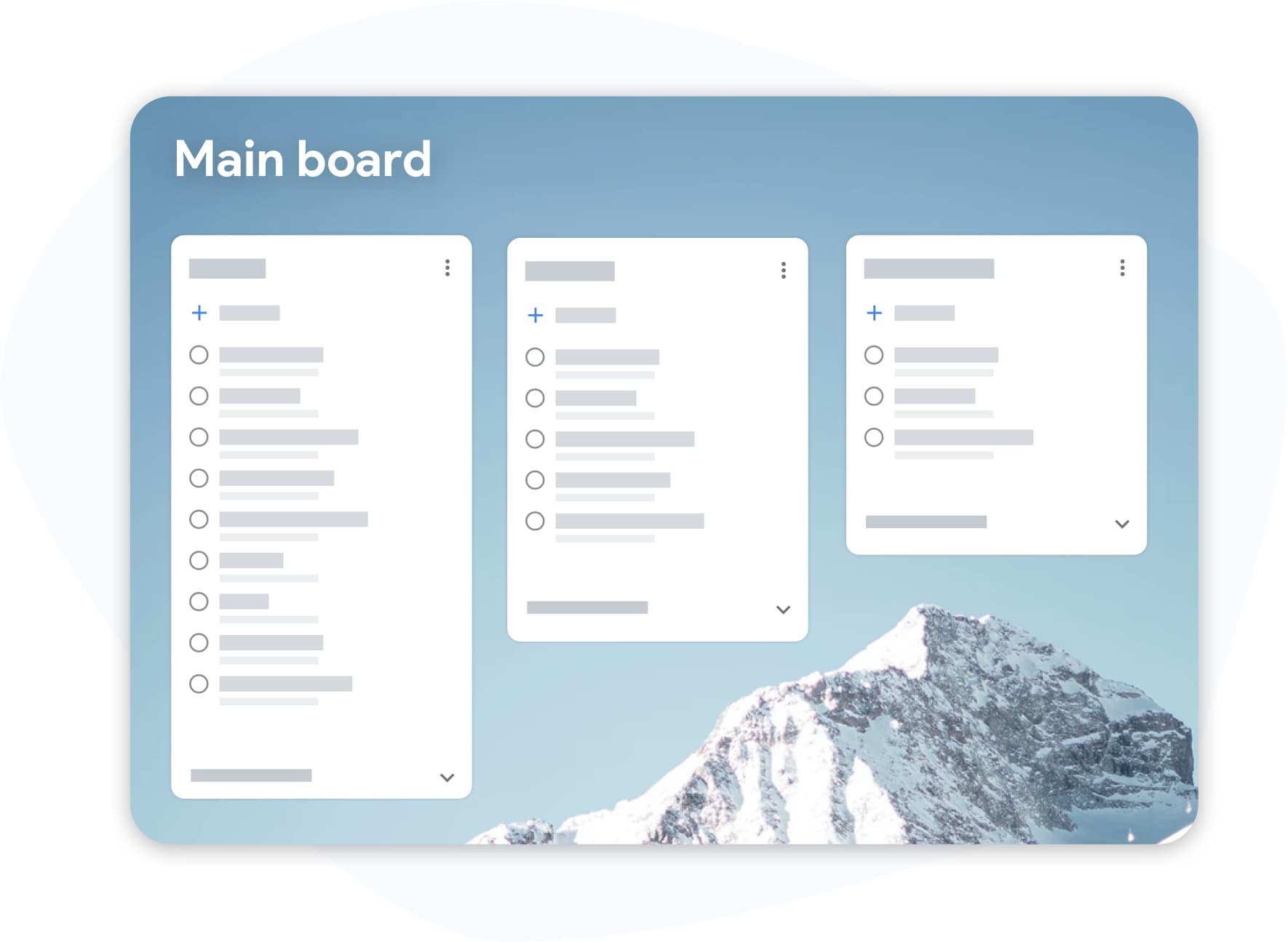
7. Star Tasks to Build a Daily Focus List
Google Tasks’ star feature is a simple but powerful prioritization tool. Instead of working through a long list from top to bottom, use stars to flag the 3–5 tasks you must complete today.
How to use it:
- Hover over any task in your list
- Click the star icon that appears on the right side
- Switch to the “Starred” view in Google Tasks to see only your priority tasks
The discipline of choosing only 3–5 starred tasks forces you to be intentional about your day. It’s a lightweight implementation of the MIT (Most Important Tasks) method, proven to reduce decision fatigue and improve follow-through.
Review your stars each morning and each evening — remove completed stars and add new ones for tomorrow.
8. Visualize All Your Tasks as a Kanban Board
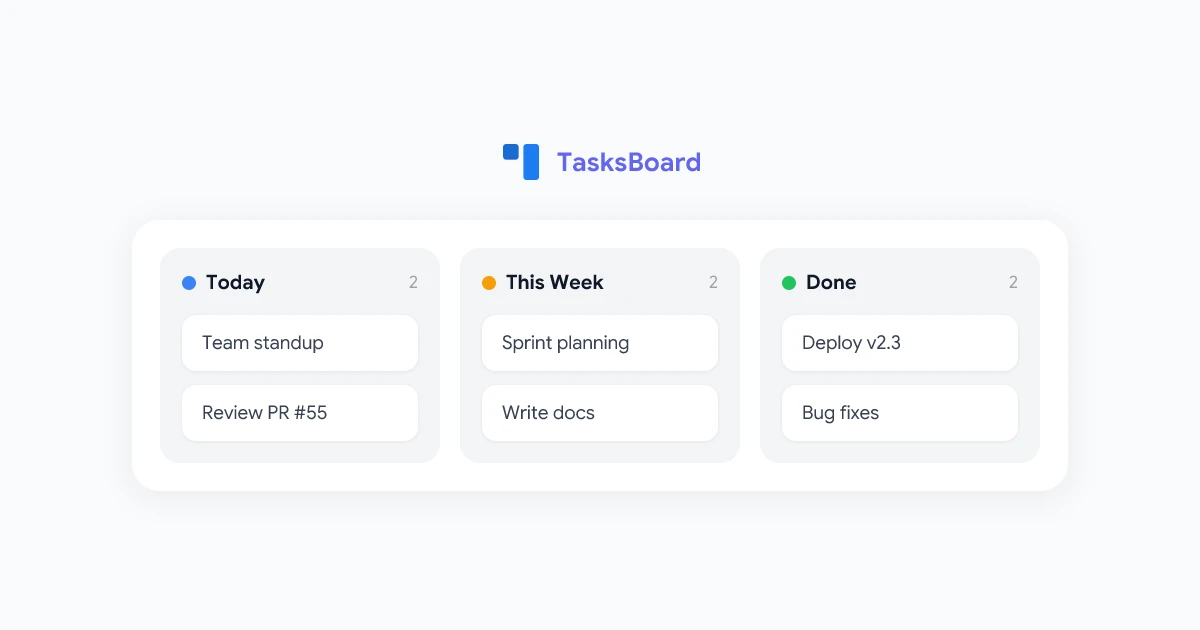
The list view in Google Tasks works fine for simple to-dos, but falls short when you’re managing multiple projects in parallel. Seeing tasks as a visual Google Tasks kanban board changes everything.
TasksBoard transforms your Google Tasks into a kanban board without any migration. Your existing lists become columns, your tasks become cards, and you can drag them between stages as work progresses.
Why a kanban view helps:
- See everything at once: All your lists (projects) are visible side by side
- Track status visually: Work-in-progress is obvious at a glance
- Reduce context switching: No more toggling between list views
- Prioritize by column: Drag your most urgent tasks to the top of each column
This is the single biggest upgrade you can make to how you use Google Tasks for project management — and it takes about 30 seconds to set up.
9. Share Google Tasks with Your Team
Google Tasks is built for individual use, but that doesn’t mean teams can’t use it together. With TasksBoard, you can share your Google Tasks with teammates and collaborate in real time.
How to share tasks using TasksBoard:
- Open your board in TasksBoard
- Click the “Share” button in the top-right corner
- Invite team members by email address
- Team members accept the invitation and see your shared board
Shared boards let team members add tasks, move cards between columns, and see each other’s progress — all synced to the underlying Google Tasks. No separate project management subscription required.
This approach works well for small teams (2–10 people) who want a lightweight shared task system without the complexity of tools like Jira or Asana.
10. Structure Google Tasks for Project Management
When used with the right structure, Google Tasks handles lightweight project management surprisingly well. Here’s a setup that works for most professionals:
One list per project:
- Create a dedicated task list for each active project
- Archive completed project lists by clearing all tasks when the project ends
Parent tasks = milestones, subtasks = action items:
- Parent: “Finalize website redesign”
- Subtask: “Get copywriter revisions”
- Subtask: “QA test on mobile”
- Subtask: “Get CEO approval”
- Subtask: “Deploy to production”
Set due dates on subtasks, not just parent tasks: This creates intermediate checkpoints in Google Calendar and prevents last-minute scrambles.
Weekly review ritual (15 minutes every Monday):
- Mark any completed tasks done
- Update due dates that slipped
- Create tasks for the new week
- Decide what to star as this week’s priorities
For projects with multiple stakeholders, use TasksBoard’s desktop app for a distraction-free full-screen workspace where you can manage everything without switching tabs.
Manage Projects with TasksBoard
Take your Google Tasks workflow to the next level. TasksBoard adds a kanban board, team sharing, and a full-screen desktop experience — all built on top of your existing Google Tasks data.
Try TasksBoard Free →
Frequently Asked Questions
Conclusion
Google Tasks is more capable than most people realize. From syncing with Google Calendar and capturing emails as tasks, to organizing work across multiple lists and breaking projects into subtasks — these Google Tasks tips and tricks can meaningfully improve how you manage your day.
The real unlock comes when you pair Google Tasks with TasksBoard: a kanban board, team sharing, and a full-screen desktop experience built on the same data you already have. It’s the fastest way to go from a basic task list to a full productivity system — without learning a new tool from scratch.
Start with one or two of these tips today. Small improvements in how you manage tasks compound into significant productivity gains over weeks and months.