

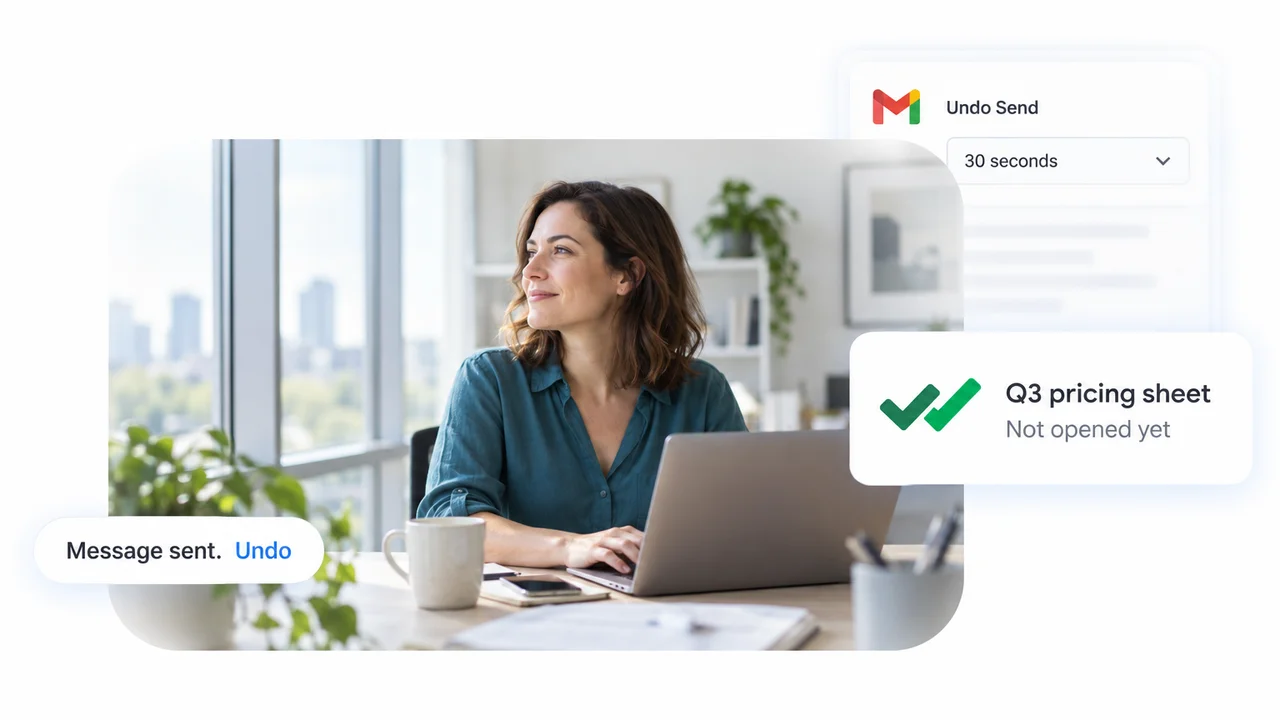
To recall an email in Gmail, click Undo in the “Message sent” bar that appears right after you send it. You get 5 seconds by default, and you can raise that to 30 seconds in Settings. Once the bar is gone, Gmail has no recall feature: the email is delivered, and nothing in Gmail pulls it back.
This guide covers both halves of the problem. The first half is how to recall an email in Gmail on a computer and on a phone, with the longest window Gmail allows. The second half is what to do after that window closes, including how Mail Tracker shows whether the mistaken email has been opened yet.
In short:
- Recall it right away: click or tap Undo in the bar that appears after you send.
- Give yourself more time: set the “Send cancellation period” to 30 seconds, the maximum.
- After the window: there is no recall, whether 10 minutes, 1 hour or a day has passed. Deleting the email from Sent does not unsend it.
- What still helps: a quick correction, “Remove access” for confidential mode emails, and a Workspace admin for internal mail.
- Before you write the correction: check whether the first email was opened. Mail Tracker shows that inside Gmail.
Gmail has Undo Send, not a true recall
“Recall” suggests pulling a delivered message out of someone’s inbox. Gmail does not offer that. Google’s help page on how to send or unsend Gmail messages describes a single option: “If you decide you don’t want to send an email, you have a short time after to cancel it.”
That short time is the Undo Send window.
| Question | Answer |
|---|---|
| How long is the window? | 5, 10, 20 or 30 seconds, depending on your setting |
| What is the default? | 5 seconds |
| Where is the Undo option? | In the “Message sent” bar at the bottom left on a computer, and next to “Sent” in the mobile app |
| What happens after you click it? | The message comes back as a draft that you can edit |
| What if the window has passed? | Gmail’s help page lists no other way to unsend |
The default and the draft behavior come from Google’s own walkthrough of how to undo send in Gmail, published in February 2023.
How to recall an email in Gmail on a computer
- Send the email. Then look at the bottom left corner of the Gmail window.
- Find the “Message sent” bar. Google’s help page says it carries two options, “Undo” and “View message”.
- Click Undo before the bar disappears. That cancels the send.
- Fix the draft. Google’s walkthrough says a draft of your message pops up so you can edit it. Correct the recipient, the attachment or the text, and send it again.
If the bar has already disappeared, the window has closed. Skip ahead to what still works after that.
How to change the Gmail Undo Send time to 30 seconds
Five seconds is barely enough to notice a mistake. Raising the limit takes a minute.
- Open Gmail on your computer.
- Click Settings in the top right, then “See all settings”.
- Find the “Undo Send” row. In Google’s screenshot below, it sits on the General tab.
- Select a “Send cancellation period” of 30 seconds. The choices are 5, 10, 20 and 30.
- Click “Save changes” at the bottom of the page.
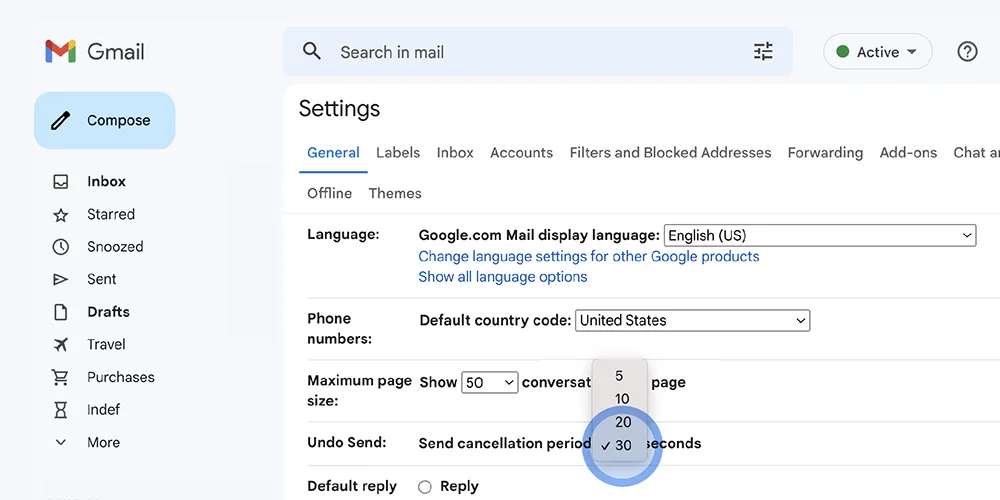
Thirty seconds is the ceiling. Gmail has no option for a minute or longer, so the habit matters as much as the setting. After you click Send, keep your eyes on the bar until it is gone.
How to unsend an email in the Gmail app on Android and iPhone
- Tap Send.
- Watch the bottom of the screen. Google’s help pages for Android and for iPhone and iPad say you will see the message “Sent” and the option to Undo.
- Tap Undo. According to Google’s walkthrough, your original message reappears so you can make changes.
Google documents the cancellation period setting for Gmail on a computer only. Its Android and iPhone pages list just the Undo step, with no setting for the number of seconds.
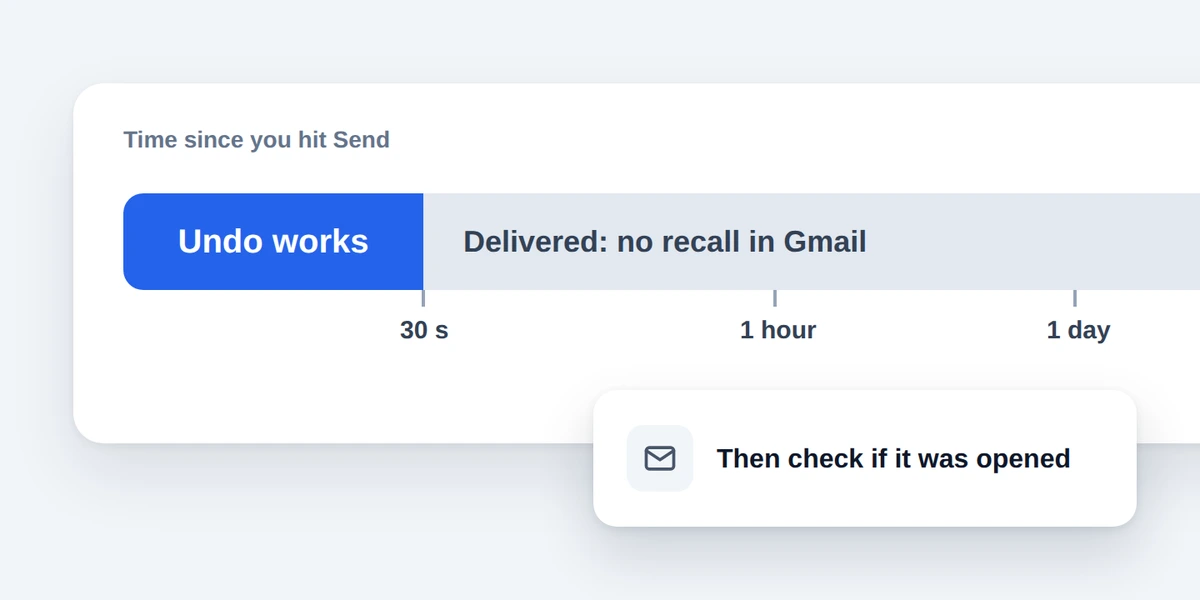
You cannot recall an email in Gmail after 30 seconds, 1 hour or a day
Once the cancellation period ends, the answer stops changing. An email sent 10 minutes ago is exactly as final as one sent yesterday.
| What people try | Does it recall the email? |
|---|---|
| Clicking Undo inside the cancellation period | Yes |
| Looking for Undo after 10 minutes, 1 hour or a day | No, the option is gone |
| Deleting the email from the Sent folder | No, that deletes your copy only |
| Using Outlook’s Recall on an email sent to a Gmail address | No, recall only works inside one Microsoft 365 organization |
| Clicking “Remove access” on a confidential mode email | Partly: it stops the recipient from opening the email |
Deleting a sent email does not unsend it
Your Sent folder holds your copy of the message. The recipient’s copy sits in their own mailbox, and deleting yours changes nothing on their side. Microsoft’s guide on how to recall an email in Outlook states the principle for its own web-based email services: once you send an email message, “it’s gone from your email server and out of your control.”
Outlook’s message recall does not reach Gmail
People who use Outlook at work often expect a Recall command. The same Microsoft guide limits it sharply:
- Same organization only: both you and the recipient need a Microsoft 365 work or school account in the same organization.
- Unopened only: the recipient must not have opened the message yet.
- No personal accounts: the guide says personal email accounts cannot use message recall, and it names Gmail, Hotmail and Outlook.com.
So an email sent from Outlook to a Gmail address cannot be recalled, and Gmail has no equivalent of its own.
First, check whether the email has been opened
What you write next depends on one fact: has the recipient seen the mistake?
- Not opened yet: a quick correction can still arrive before the damage is done.
- Already opened: you need an apology as well as a fix.
Gmail on its own rarely tells you. Google’s page on how to request or return a read receipt says read receipts are only available to work or school accounts, and the recipient may need to approve the receipt first. Our guide to Gmail read receipts covers that route.
Mail Tracker, a Gmail add-on and Chrome extension published by Qualtir, fills the gap. It cannot recall an email either. It adds the one piece of information you need after a mistake: the open status of the email you already sent.
There is one condition. The tracker has to be in the email before you send it. If the mistaken email was not tracked, assume it will be read and go straight to the correction below. Then switch tracking on, so the next mistake comes with an answer.
Set up tracking so every email is covered
- On a computer, install the Chrome extension from the Mail Tracker site. The product’s FAQ recommends the extension for desktop use and the Google Workspace add-on for mobile.
- Switch tracking on. The Chrome extension help page says to click the checkmark icon in the top bar of Gmail and move the switch to ON.
- Enable “Track emails by default”. The same page says this option automatically tracks all outgoing emails, so you do not have to remember it for each message.
- On a phone, use the add-on. Its Google Workspace Marketplace listing, which shows more than a million installs, says it works in the Gmail app on iOS and Android. You insert a tracker with a button in the email composer, one email at a time.
Read the checkmarks in your Sent list
The help page describes two states for a tracked email:
- Two transparent checkmarks: the email was sent.
- Two green checkmarks: the email has been opened by the recipient.

| What you see | What it tells you | What to do |
|---|---|---|
| Transparent checkmarks | No open has been recorded | Send the correction now, while it can still arrive first |
| Green checkmarks | The email has been opened | Apologize, correct the mistake, and call if the content was sensitive |
| No checkmarks | The email was not tracked | Assume it has been read |
For other signals worth reading, see our guide on how to know if someone read your email.
What open tracking cannot tell you
Open data is a signal, not proof. The Mail Tracker FAQ is open about the limits:
- Your own opens count: an email is reported as opened even if the sender opens it from the Sent folder.
- Security scans can count: some email providers pre-load email content to check for spam or phishing, which can trigger the tracker.
- One tracker per email: with several recipients, you can see that someone opened the message, but not who.
Our explainer on the tracking pixel in email shows how opens are detected and when they are missed. Treat “not opened” as “probably not read yet”, and treat an open in the first few seconds with caution.
The free plan covers unlimited tracked emails, open counts, timestamps and push notifications, and it adds a small visible signature to tracked emails. Premium removes the signature and adds full tracking history and daily reports for $2.99 per month, billed yearly.
 Try Mail Tracker
See inside Gmail whether an email has been opened, how many times and when. Turn on tracking by default and the next email you regret will show you whether it has been read.
Get Started →
Then send a short correction
A correction works when it is fast, short and impossible to misread. Reply to your own sent message so both emails sit in the same conversation. Put the fix in the first line, and skip the story of how the mistake happened.
Wrong or missing attachment
Hi Dana,
Correction: my last email had the wrong file. The right version is attached to this one. Please use it and delete the earlier attachment.
Sorry for the extra email.
Sam
Wrong recipient
Hi Dana,
Please disregard my previous email. It was meant for someone else and reached you by mistake. I would be grateful if you deleted it without forwarding it.
Apologies for the confusion.
Sam
Wrong information
Hi all,
One correction to my last email: the meeting is on Thursday at 10:00, not Tuesday. Everything else stands.
Sam
If the first email contained something sensitive, such as a password, a contract or personal data, do not rely on a correction alone. Change the password, tell the people affected, and follow your company’s reporting process.
Two more options: confidential mode and your Workspace admin
Remove access to a confidential mode email
If you sent the email in Gmail’s confidential mode, you have a real lever. Google’s page on how to send and open confidential emails says you can revoke access to an email at any time:
- Open Gmail on your computer and click Sent.
- Open the confidential email.
- Click “Remove access”.
Two limits apply. Confidential mode is switched on in the compose window before you send, so it cannot rescue an ordinary email. Google also warns that recipients can still take screenshots or photos of a confidential email, so anything already read may already be copied.
Ask your Workspace admin about email sent to colleagues
For email that stayed inside your company, an administrator may be able to help. Google’s security investigation tool lets admins search Gmail messages and take action based on the search results, and “Delete messages” is one of the listed actions.
- Editions: Google lists Frontline Standard and Plus, Enterprise Standard and Plus, Education Standard and Plus, Enterprise Essentials Plus and Cloud Identity Premium. It adds that the available data sources vary by edition.
- Reach: an admin manages your organization’s accounts only. A copy that landed in an outside mailbox is out of reach.
- Speed: contact the admin at once, with the subject, the recipients and the time you sent the email.
How to avoid needing a recall next time
- Keep the cancellation period at 30 seconds. It is the only recall Gmail has.
- Schedule risky emails instead of sending them. Google’s page on how to schedule emails to send says you can cancel a scheduled email from the Scheduled folder, and it becomes a draft again. An email scheduled for ten minutes from now gives you ten minutes to change your mind. Our guide on how to schedule an email in Gmail has the steps.
- Add recipients last. Write and check the email first, then fill in the “To” field.
- Use confidential mode for sensitive content. You keep the option to remove access later.
- Leave tracking on by default. When a mistake does get out, you will know whether it has been opened.
For more habits like these, see our Gmail tips and tricks.
FAQ
Catch it in 30 seconds, or find out whether it was read
Knowing how to recall an email in Gmail comes down to one bar and one setting. Click Undo while “Message sent” is on screen, and set the cancellation period to 30 seconds so you have time to do it. After that, nothing brings the email back. What you control is the response: check whether it was opened, send a short correction, and use “Remove access” or your admin when they apply.
Add Mail Tracker to Gmail and switch on tracking by default. The next email you wish you could take back will at least tell you whether it has been read.


