

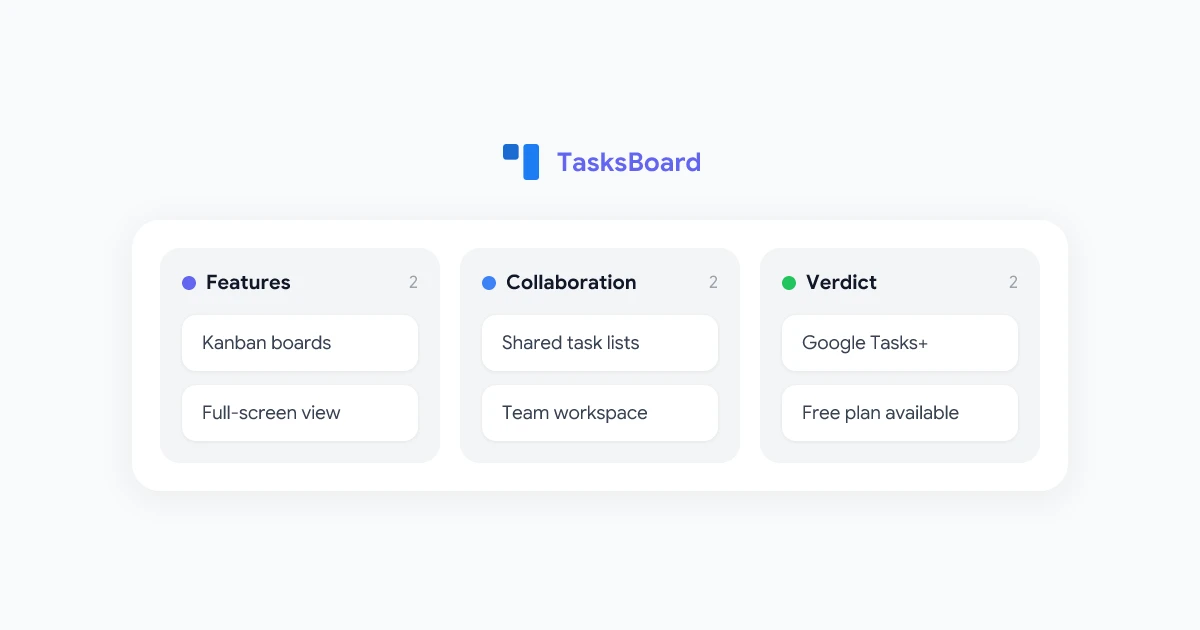
Google Tasks is deeply embedded in the Google ecosystem. It lives in Gmail, Google Calendar, and Google Drive. For jotting down quick to-dos, it’s fast and frictionless. But the moment you try to manage a real project, a shared workload, or even your own week in full, the cracks start to show. There’s no kanban view, no easy team sharing, and the interface tops out at a narrow sidebar panel.
TasksBoard bridges that gap. It’s a dedicated app built entirely around Google Tasks that adds the features Google left out, kanban boards, a full-screen interface, shared task lists, and a proper dashboard for power users. In this review, we’ll walk through everything TasksBoard does, how to use it effectively, what it costs, and whether it’s the right upgrade for you.
What Is TasksBoard?
TasksBoard is a web and desktop app designed to give Google Tasks users a significantly upgraded experience. It connects directly to your Google account and syncs with the same Google Tasks data you already manage in Gmail or Google Calendar, no migration, no import, no learning a new system.
The core value proposition is simple: TasksBoard lets you visualize and manage your Google Tasks the way modern productivity apps do, without abandoning the Google ecosystem you already rely on.
When you open TasksBoard, your task lists appear as kanban columns with cards you can drag and drop. You can share lists with teammates using their Google accounts, assign tasks, set due dates, and view everything on a full-screen board instead of a cramped sidebar.
TasksBoard syncs in real time with your existing Google Tasks data. Every task, list, and due date you create in TasksBoard instantly appears in Gmail, Google Calendar, and the Google Tasks mobile app, and vice versa. You're not switching tools, you're adding a better interface on top of the one you already use.
Key Features of the TasksBoard App
Kanban Board View
The standout feature of the TasksBoard app is its kanban board. Each of your Google Tasks lists becomes a column, and tasks within those lists appear as draggable cards. You can see your entire workload at a glance, move tasks between lists by dragging, and quickly identify what’s in progress, what’s blocked, and what’s done.
This is something native Google Tasks still doesn’t offer. If you want to see all your lists side by side or work in a visual board format, TasksBoard is one of the only solutions that does this while keeping Google Tasks as the backend.
Full-Screen Dashboard
Unlike the Google Tasks sidebar, which is limited to a narrow panel inside Gmail or Google Calendar. TasksBoard gives you a full-screen workspace. This makes a real difference when you’re managing multiple projects or long task lists. You can see more tasks per column, read task titles without truncation, and stay focused without distractions from your inbox.
This full-screen experience is also why many users look for a Google Tasks desktop app: the default Gmail sidebar isn’t built for serious task management.
Team Sharing and Collaboration
Google Tasks has no native sharing feature. If you want to give a colleague access to one of your task lists, there’s no built-in way to do it. TasksBoard solves this directly: you can share any Google Tasks list with another Google account, set their permission level (view or edit), and collaborate in real time.
This makes TasksBoard genuinely useful for google tasks for teams, small teams, freelancers working with clients, or families who want a shared to-do list. The shared tasks sync across all participants’ Google accounts, so nothing gets lost. Learn more about the sharing workflow in our guide on how to share Google Tasks with TasksBoard.
Sub-tasks and Task Details
Each task card in TasksBoard can hold sub-tasks, notes, and a due date, mirroring the structure of Google Tasks itself. The board view makes it easy to expand a task and see all its subtasks without leaving the main interface. For more complex projects, this hierarchical view is significantly cleaner than scrolling through a linear list.
Multi-Device Support
TasksBoard is available as a web app (at tasksboard.com) and as a standalone desktop app for macOS and Windows. Both versions sync through your Google account, so you can start a task on your laptop and check it off from your phone using the native Google Tasks app.
How to Use TasksBoard Effectively
Step 1: Connect Your Google Account
Go to tasksboard.com and sign in with your Google account. TasksBoard requests access to your Google Tasks data. Once granted, your existing lists and tasks load immediately, you don’t need to create anything from scratch.
Step 2: Organize Your Lists into a Workflow
The most effective way to use TasksBoard is to treat your Google Tasks lists like kanban stages. Instead of naming lists by project (which is fine too), try naming them by status: To Do, In Progress, Blocked, Done. Then move task cards across columns as work progresses.
If you prefer project-based organization, create one list per project and use sub-tasks to track individual steps within each project. Both approaches work well. It depends on whether you’re managing multiple concurrent projects or a single continuous workflow.
Step 3: Use Sharing for Team Accountability
If you work with others, the sharing feature is where TasksBoard earns its keep. Select any list, click the share icon, and enter your teammate’s Google email. They’ll get access to the shared list on their own TasksBoard, with changes syncing for both of you. This is one of the cleanest ways to handle how to use google tasks in a team setting without migrating everyone to a different tool.
For best results, create dedicated shared lists for collaborative work and keep personal lists private. This keeps the board clean and reduces noise for everyone involved.
Tips for Using Google Tasks Effectively with TasksBoard
To get the most out of Google Tasks through TasksBoard:
- Use due dates consistently: Tasks with due dates appear in Google Calendar automatically, giving you a second view of your schedule
- Keep list names short: Column titles in the kanban view truncate at longer widths, shorter names keep the board scannable
- Archive completed tasks regularly: TasksBoard lets you collapse or hide completed tasks so your active board stays uncluttered
- Create a “Someday” list: A catch-all list for low-priority ideas keeps them out of your active workflow without losing them
Our guide on Google Tasks tips and tricks covers additional strategies for getting more out of the underlying Google Tasks system.
 Try TasksBoard
Get a full-screen kanban board, team sharing, and a real desktop app for Google Tasks, all synced with your existing Google account. Free to start.
Get Started →
TasksBoard for Teams: A Practical Assessment
Google Tasks was built as a personal to-do app, and it shows. There’s no assignment, no commenting, no activity feed, and no way to see who’s working on what. For individual productivity it’s fine. For teams, it falls short.
TasksBoard doesn’t try to replace Asana or Jira. It doesn’t add commenting, time tracking, or a built-in chat. What it does add is the minimum viable collaboration layer that makes google tasks for teams actually workable: shared lists and real-time sync.
This makes it a strong fit for:
- Small teams (2, 8 people) who are already using Google Workspace and don’t want to introduce another SaaS tool
- Freelancers and clients who need a lightweight shared task tracker without asking the client to sign up for a new platform
- Families and households sharing a grocery list, home project list, or chore tracker
- Managers who want to see team task lists without joining a Slack workspace or Asana account
If your team needs robust project management with timelines, dependencies, and reporting, you’ll eventually outgrow TasksBoard. But for most small teams doing focused collaboration work, it fills the gap that Google Tasks leaves open without adding unnecessary complexity.
TasksBoard Pricing: What You Get for Free
TasksBoard offers a free plan that covers the core use case for most individuals:
- Unlimited task lists (kanban columns)
- Full kanban board interface
- Sub-tasks and due dates
- Real-time Google Tasks sync
- Desktop app access
The premium plan adds features focused on team use and power users:
- Shared lists with edit access for collaborators
- Priority support
- Additional customization options for the board view
Pricing is per user per month, with annual billing available at a discount. For most individual users and small teams, the free plan is enough to get started, upgrade only when you need the sharing features.
TasksBoard vs. Native Google Tasks: What You Actually Gain
| Feature | Google Tasks (native) | TasksBoard |
|---|---|---|
| Kanban board view | ✗ | ✓ |
| Full-screen interface | ✗ | ✓ |
| Team sharing | ✗ | ✓ |
| Desktop app | ✗ | ✓ (macOS + Windows) |
| Sub-tasks | ✓ | ✓ |
| Due dates | ✓ | ✓ |
| Google Calendar sync | ✓ | ✓ |
| Mobile app | ✓ | Via Google Tasks app |
The trade-off is clear: native Google Tasks wins on mobile and quick entry (it’s always a click away in Gmail), while TasksBoard wins on visibility, organization, and collaboration. Many users end up using both, jotting tasks in the Gmail sidebar and managing them in TasksBoard.
Frequently Asked Questions
Conclusion: Is TasksBoard Worth It?
TasksBoard is the answer to one of the most common productivity complaints among Google Workspace users: “I love Google Tasks, but I need a better interface.” It doesn’t try to be everything. It specifically solves the lack of a kanban view, a full-screen experience, and team collaboration in Google Tasks.
For individual users, the free plan is compelling enough on its own. The kanban board and full-screen dashboard alone justify the installation, and the seamless Google Tasks sync means there’s no switching cost. For small teams, the shared lists feature makes Google Tasks genuinely collaborative, something Google itself hasn’t built natively.
If you’re looking for a tool that lets you use Google Tasks how you’ve always wanted to, TasksBoard is the most direct solution available.


